


Google Analytics for Beginners


Google Analytics is one of the best web analytic tools for you today. over 28 million websites connected to this tool. Understanding Google analytics is the first step towards a more complete understanding of your websites and visitors. by going through reports which help in decision making.
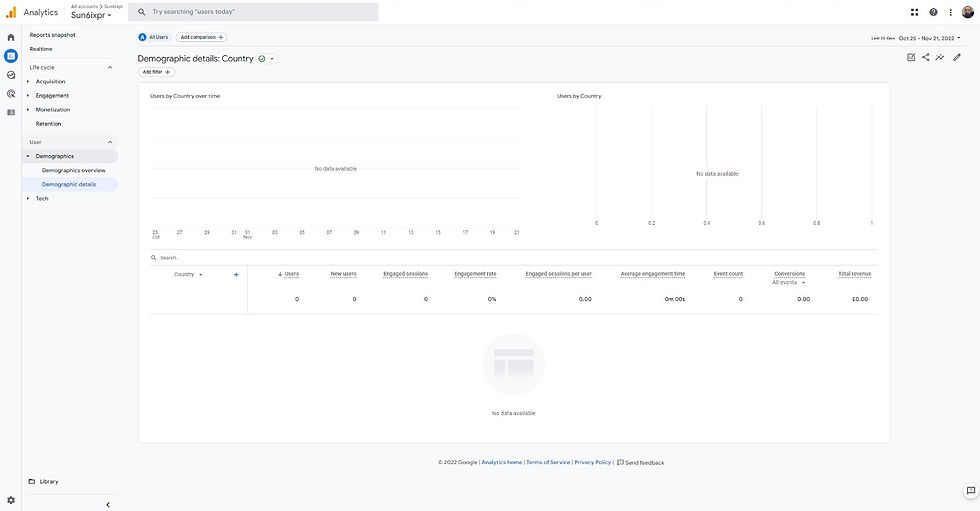
In other words, Google Analytics is a web tracking and analytic tool. that shows you the number of visitors on your website and some host of activities that happens on your site.

Why your website needs Google Analytics
Google Analytics is a free-to-use tool for all websites and helps in better decision making if you want a better understanding of everything going on your website you have to use this tool.
Below are several impacts the Google analytic tool will have on your website
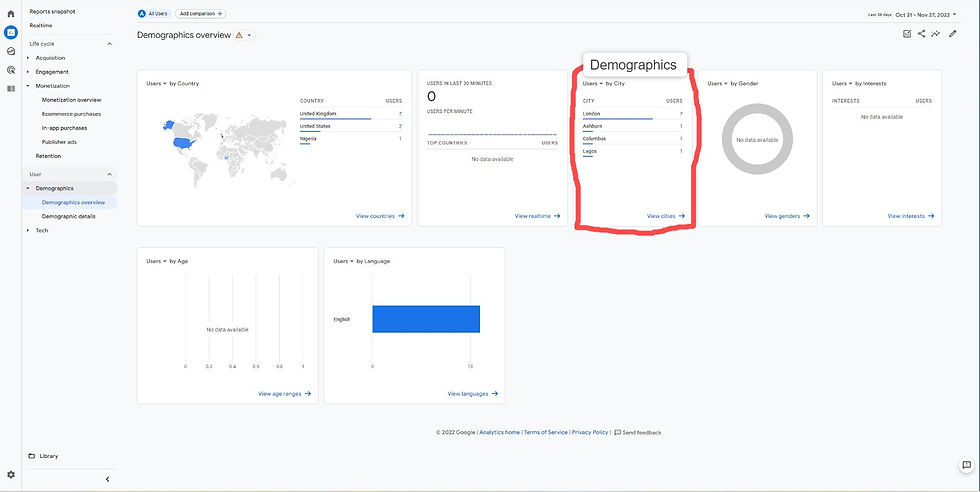
By using Google Analytics, you understand how effective your website has been, you learn who are your website visitors and where they are connecting from and understand what kind of content is engaging to them which can also help in the segmentation of customers.
Google Analytics improves content that performs well and lays more emphasis on pages to help understand the number of people that visits and navigates this page both on daily basis and more. google analytics also learn keywords that drag traffic to your website. and shows you the speed of your site and things to do to improve the site.

Setting up a Google Analytics Account
in order for you to use this tool, below are steps to enable you to use this tool. all you basically need is a google account and a functional website. you can open one today with the link
Step-by-step process to set up Google Analytics for your website
Click on the “Start for Free” button.
Log in to your Google account.
Click on the “Start measuring” button.


4. Name your account.
5. Add a property name (your Domain name).
6. Under Advanced settings, turn on the toggle to create a Universal Analytics property and add the URL of your site.
7. Add business information and click on the “Next” button.
8. Confirm the terms of the agreement and customize email communication options to your preferences.
9. Set up a data stream to start collecting data. Since we are learning about tracking a blog/website, click on the “Web” button.
10. Add the URL and name of your website.
After this step, you will receive a measurement ID that needs to be connected to your site. This is a way of proving the ownership of the site and tethering it directly to Google Analytics so that the entire system can work properly.
11. Under Tagging Instructions, choose the “Global site tag (gtag.js)” option.

Add Google Analytics tracking code manually to your WordPress website
1. Log in to your WordPress website.
2. Navigate to Appearance -> Theme Editor.
3. From the right-hand side of the screen, locate the “Theme Header” file (header.php) and click on it. This will load the code from the selected file.
4. Copy the tracking code from Google Analytics.
5. Paste the code right before the closing </head> tag.
6. Update file.
As soon as you receive confirmation of a successful update, you’re done. Google Analytics has been successfully connected to your site, and it’s time to start tracking your first visitors! Usually, everything will start working in a couple of minutes, but don’t worry if you still don’t have the first statistics within the first 24 hours. This is normal, and in some cases, it takes a full day for the service to start working as it should.





Comments